How to setup a Macquarie Bank account for your SMSF
Disclaimer: It is Your SMSF Bank Account & Your Choice
Important to note that SMSF Australia does not recommend any one bank for your SMSF banking and has developed this guide purely to help clients who need some help on the process following an SMSF establishment. We are totally agnostic and charge exactly the same fees per our SMSF Accounting Pricing Table no matter which bank you choose to use. The only time we will recommend a bank is in the case of clients looking to invest in Crypto in their SMSF where we have found ANZ V2Plus accounts to be the most Crypto friendly banking option which we can assist clients to setup where required.
Remember this blog shows you how to go through the process but all the details are made up and fictitious so please do not copy them into your application.
Setting up your SMSF Bank Account with Macquarie
How to make an application online for your self-managed super fund (SMSF) with Macquarie Cash Management Solutions.
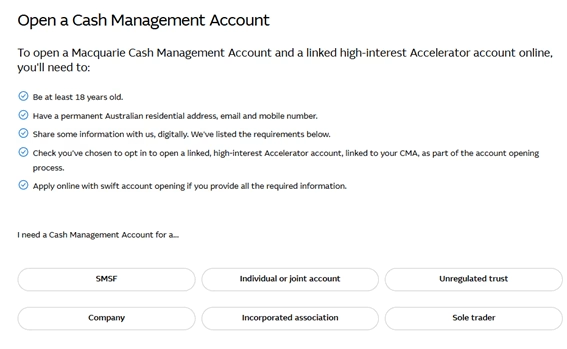
- Select “Open an account”

- Select “SMSF” under Account Reason
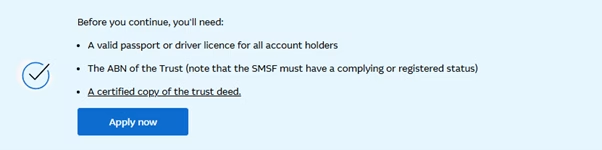
- You need the following documents before selecting “Apply now”
- Account type select third down, “Trust or Self Managed Super Fund (SMSF)”

- For an SMSF, you’ll need to provide the following and then select “company trustee”:
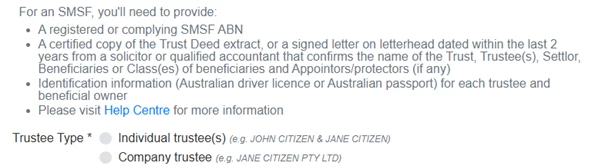 If you have established your Self Managed Super Fund via SMSF Australia then the trustee will always be a company trustee and the ASIC Extract and Certificate of Registration were emailed to you upon completion of your Online SMSF Setup.
- You need to provide the following information for a corporate trustee for your SMSF
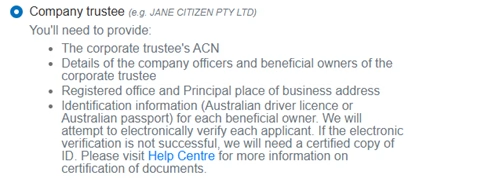
- Is this account to be opened under Power of Attorney or court order? Generally, this would be no for an SMSF.

- Would you like to open a linked Accelerator account? It is your choice, but we have selected “Yes” as a guide only.

- Select “Next” unless some of the required fields have been missed.
PART 2 – APPLICANT DETAILS
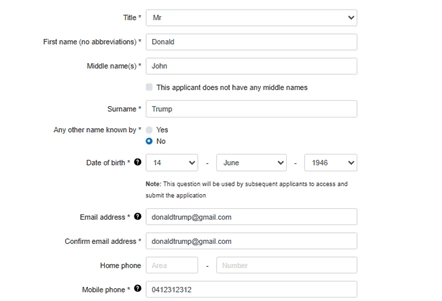
The primary applicant must also be an authorised signatory on the account.
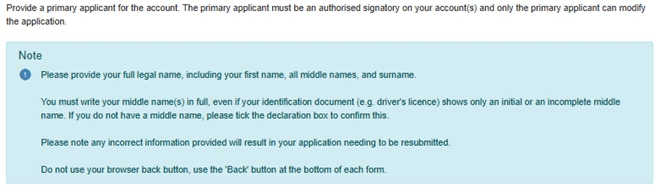
- Complete the following details for the primary applicant– an example as per below
- Pre-populate your SMSF company trustee ACN and select “Find Company”

- Select “Next” unless some of the required fields have been missed.
PART 3 – TRUST DETAILS
- Select Type of trust – “Self Managed Super Fund”
Select SMSF trust “Yes”
Insert the fund’s ABN and select “Find Super Fund” (provided the SMSF is a complying fund and the fund’s details have not been removed from Super fund lookup; the fund will automatically populate)
Ignore “Name of the business (if any)”
It is optional to insert the SMSF’s TFN
How has this entity mainly accumulated its wealth? – select “Superannuation”
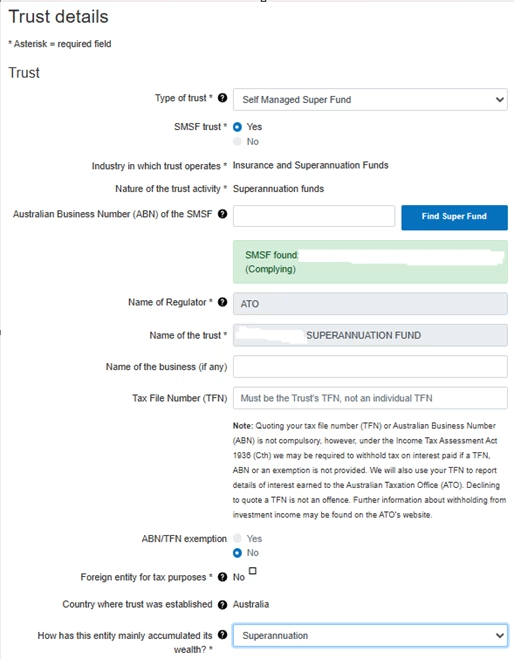
- Select “Next” unless some of the required fields have been missed.
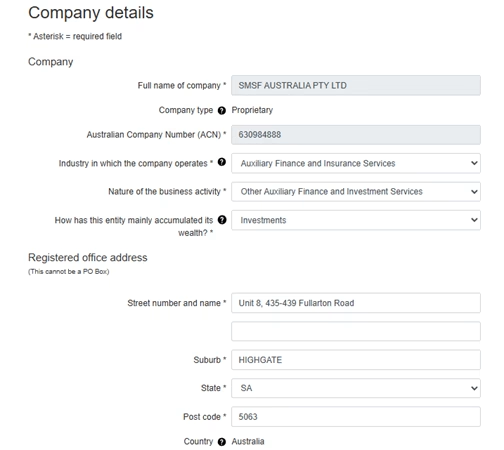
PART 4 – COMPANY DETAILS
- The company details are for your SMSF trustee and will mostly automatically populate for items marked with “?”.
Nature of the business activity – select “Other Auxiliary, Finance and Investment Services”
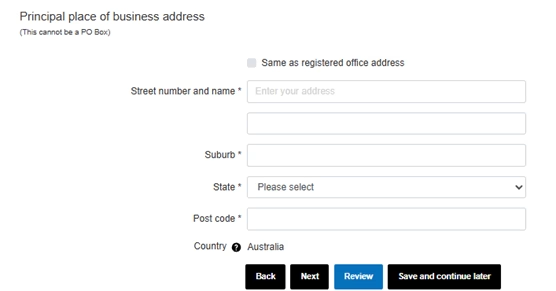
Principal place of business –deselect “Same as registered address” and populate with your address details.
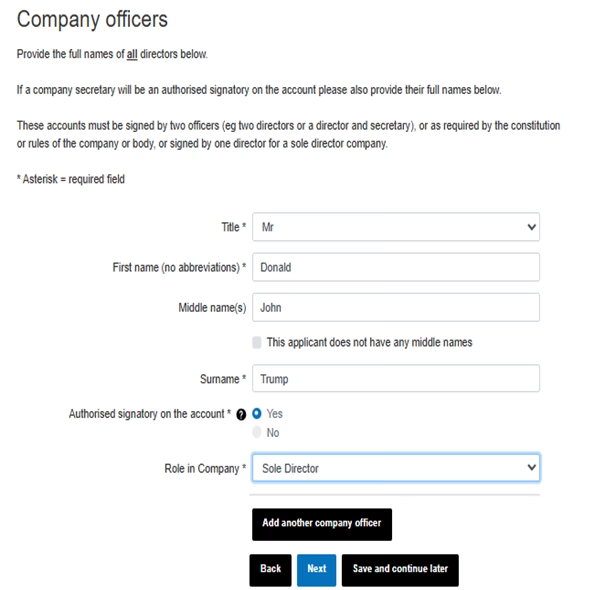
- Add in company officers
This will mostly pre-populate
Role in company – select “Company Director”, “Director” or “Sole Director”
Add another company officer if the “Sole Director” was not selected.
Populate details for all directors of the corporate trustee
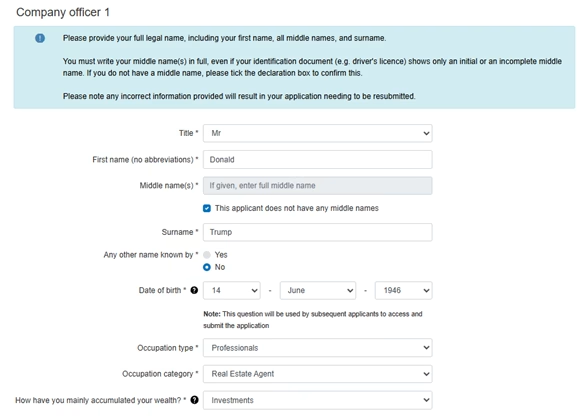
- Company Officer Details
Details of each company director are required, including identification information, residential address and contact details.
This will populate details provided previously for company officers, but additional information is required:
Occupation type
Occupation category
How have you mainly accumulated your wealth
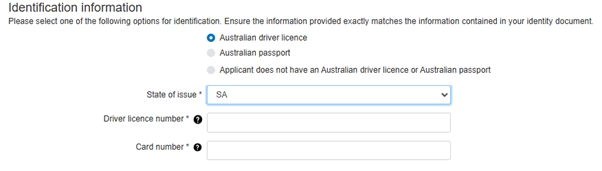
Identification Information
Select the appropriate identification details below and provide information relevant to the field selected.
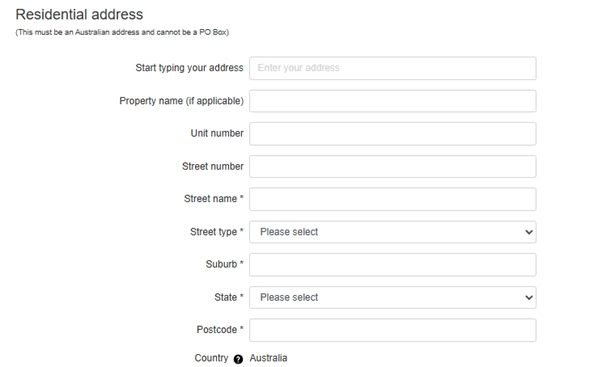
Residential Address
Provide the residential address for the company officer
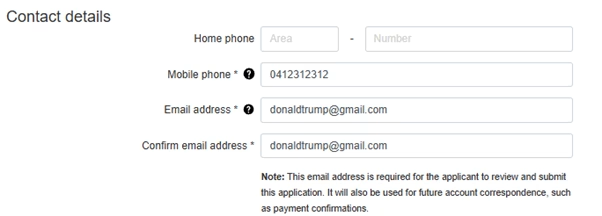
Contact details
This will pre-populate from the company officer details previously inputted.
PART 5 – BENEFICIAL OWNERS AND BENEFICIARIES
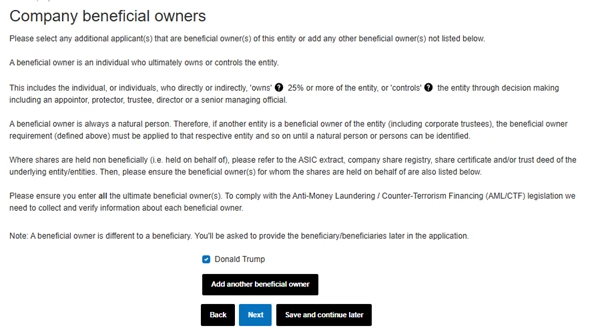
- Company Beneficial Owners
These are the shareholders of the SMSF trustee company – generally, the members of the SMSF and the shareholders of the SMSF trustee company will be the same, but this is not always the case for all SMSFs.
Add another beneficial owner if required; otherwise, proceed to the “next” screen.
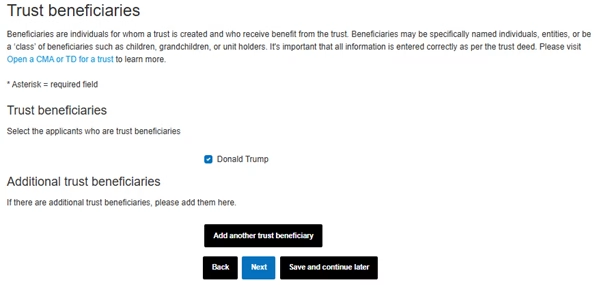
- Trust Beneficiaries
The trust beneficiaries are the SMSF members.
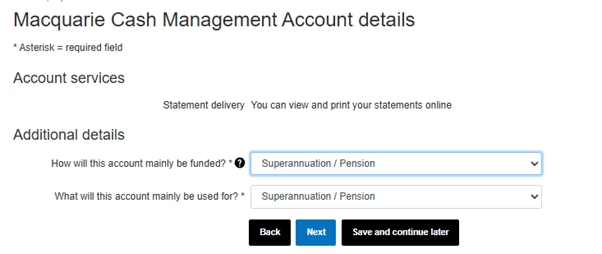
PART 6 – ACCOUNT DETAILS
- Select the following
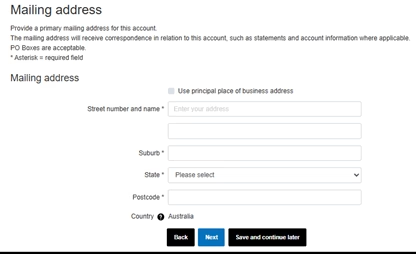
- Mailing Address
Ensure you complete the address where you want the correspondence to go.
- Authorities on the account
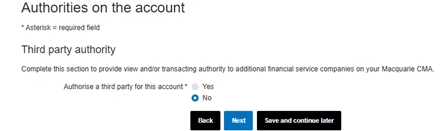 Note: Ensure to select “No” as SMSF Australia will set up an automatic data feeds through Class Super software, but we want no direct access to your bank account!
PART 7 – REVIEW AND SUBMIT
- Review the details entered to make sure they are correct. The application details will be sent to each applicant for review when you submit the application.

- Applicant declaration
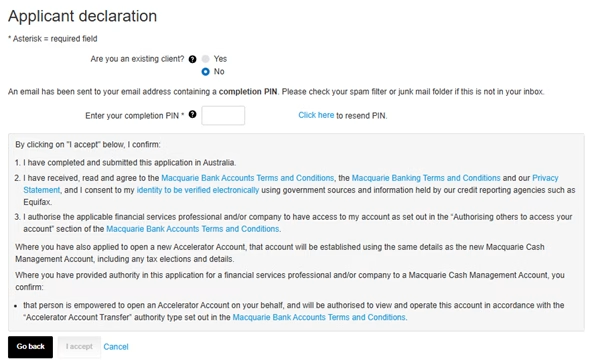
Complete the declaration and submit the application